

Solution To “Missing Barcode”
If you have reached this page it means you (like 2% of all our users) are unable to find the barcode. Good news, this is not a problem with the app! It just means you skipped a step during installation.
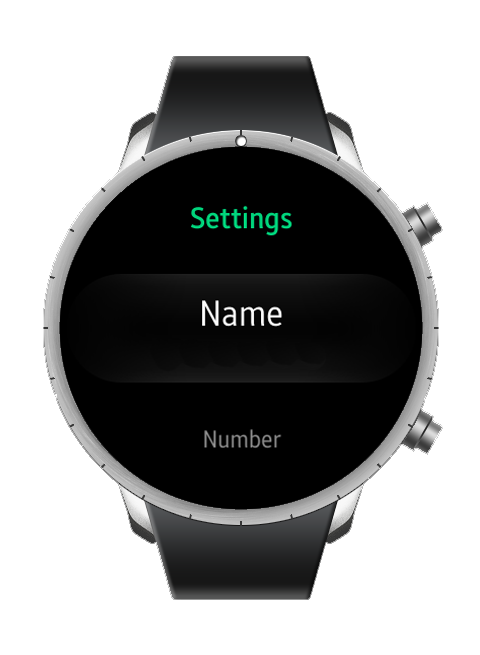
Before you follow the instructions below, it’s important that you understand that the “APP” is used to set the barcode options (name, account number, source country, etc). The “WIDGET” is used to display the barcode. And you forgot to add the WIDGET!
Although we wish we could automatically add the “WIDGET” for you when you install the “APP” from the store, Samsung prohibits this (to avoid developers from filling your watch with junk).
How to add the barcode
In the store description for this app we provide the complete installation steps. Below we have repeated the steps related (only) to showing the widget (which make the barcode visible):
That’s it! Now whenever you want to use your barcode just spin the bezel until it shows.